Animations
hofmann can render multi-frame trajectories as GIF or MP4 animations
using render_animation(). The same
per-frame rendering pipeline used for static output is applied to each
frame, so all visual options (bonds, polyhedra, colouring, styles)
work identically.
Basic usage
Build a scene from a trajectory and call render_animation():
from ase.io import read
from hofmann import StructureScene

traj = read("trajectory.traj", index=":")
scene = StructureScene.from_ase(traj)
scene.render_animation("output.gif")
The output format is determined by the file extension — .gif for
GIF or .mp4 for MP4. Animation rendering requires the
animation optional extra:
pip install "hofmann[animation]"
The examples on this page use ASE for trajectory loading, which
requires the ase extra:
pip install "hofmann[ase]"
Frame selection
By default all frames are rendered. Use the frames parameter to
select a subset:
# Every 5th frame:
scene.render_animation("output.gif", frames=range(0, 100, 5))

# Specific frames:
scene.render_animation("output.gif", frames=[0, 10, 20, 50])
Resolution and size
Control the output resolution with dpi and figsize:
scene.render_animation(
    "output.gif",
    fps=10,               # default: 30
    dpi=100,              # default: 150
    figsize=(6.0, 6.0),   # default: (5.0, 5.0)
)
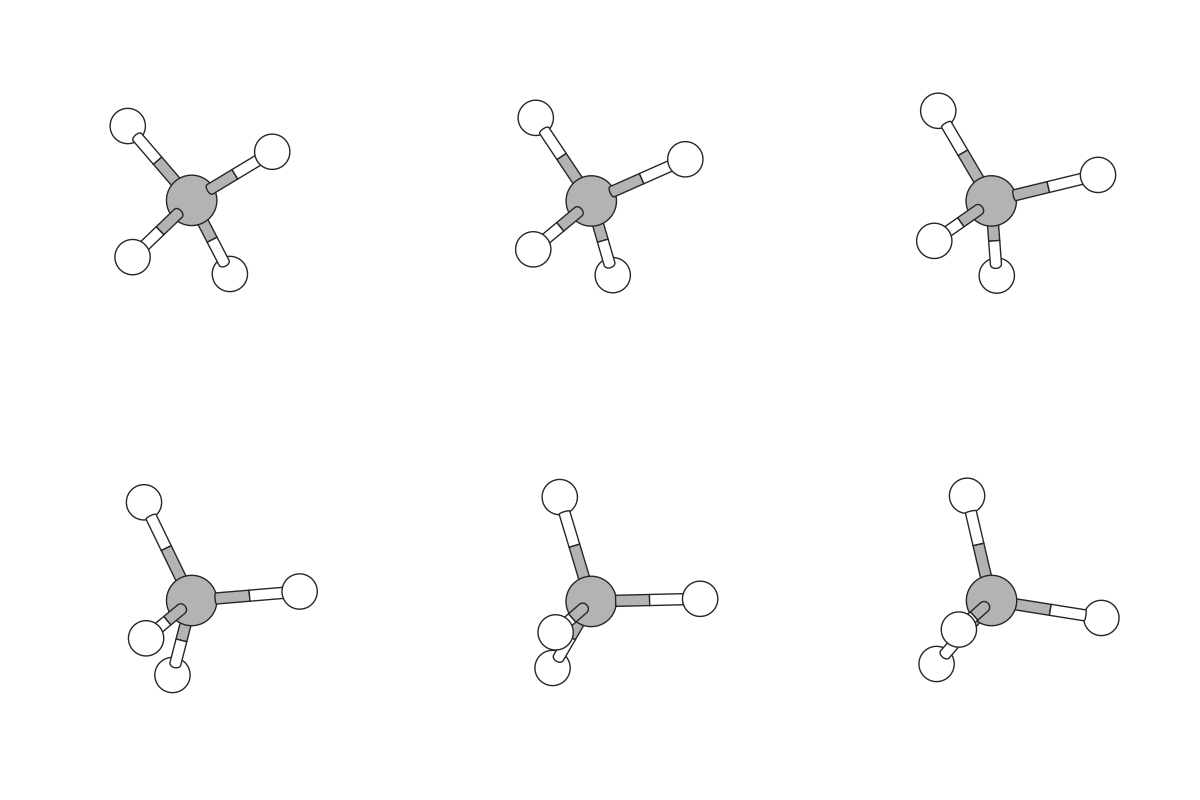
Example: CH4 vibration
A vibrating methane molecule styled to match the Getting Started example:
from ase.io import read
from hofmann import AtomStyle, BondSpec, StructureScene

traj = read("ch4_md.traj", index=":")

bonds = [BondSpec(species=("C", "H"), max_length=1.5, radius=0.055, colour=1.0)]
atom_styles = {
    "C": AtomStyle(radius=0.5, colour=0.7),
    "H": AtomStyle(radius=0.35, colour=1.0),
}

scene = StructureScene.from_ase(traj, bond_specs=bonds, atom_styles=atom_styles)
scene.render_animation("ch4_md.gif", fps=15, dpi=100, figsize=(4, 4))
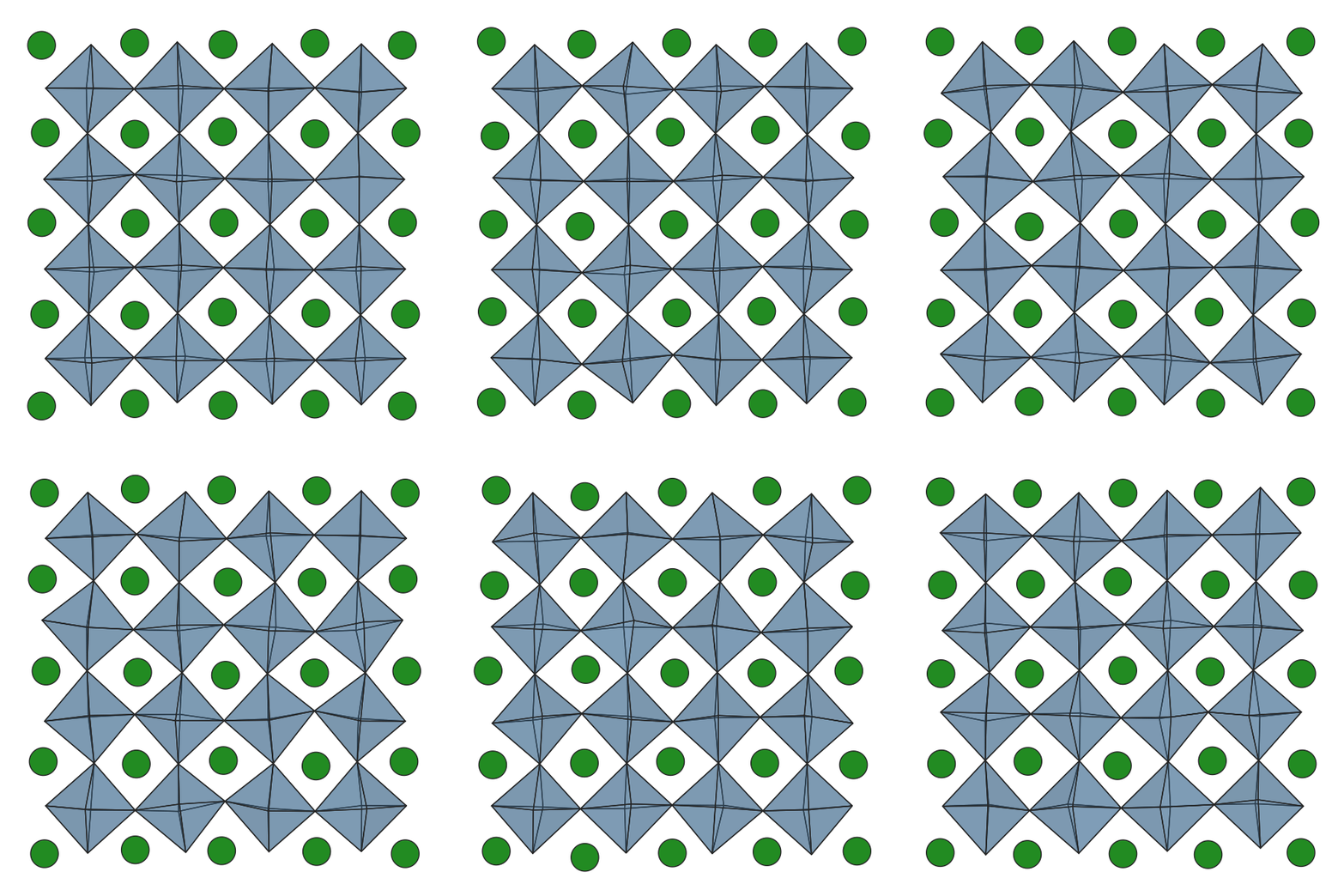
Example: SrTiO3 perovskite MD
A single octahedral layer from a 4x4x4 SrTiO3 supercell at 1000 K.
The trajectory has been pre-filtered to one Sr plane, one Ti plane,
and their coordinating O. The hide_vertices option on the
polyhedron spec hides the oxygen atoms to emphasise the polyhedral
network:
from ase.io import read
from hofmann import (
    AtomStyle, BondSpec, PolyhedronSpec, StructureScene,
)

traj = read("srtio3_md.traj", index=":")

bonds = [BondSpec(species=("Ti", "O"), max_length=2.5)]
polyhedra = [
    PolyhedronSpec(
        centre="Ti", colour="steelblue", alpha=0.4,
        hide_centre=True, hide_bonds=True, hide_vertices=True,
    ),
]
atom_styles = {
    "Sr": AtomStyle(radius=1.2, colour="forestgreen"),
}

scene = StructureScene.from_ase(
    traj, bond_specs=bonds, polyhedra=polyhedra,
    atom_styles=atom_styles,
)
scene.render_animation(
    "srtio3_md.gif", fps=10, dpi=100, figsize=(6, 6),
    show_axes=False, show_cell=False,
    pbc_padding=1.0,
)
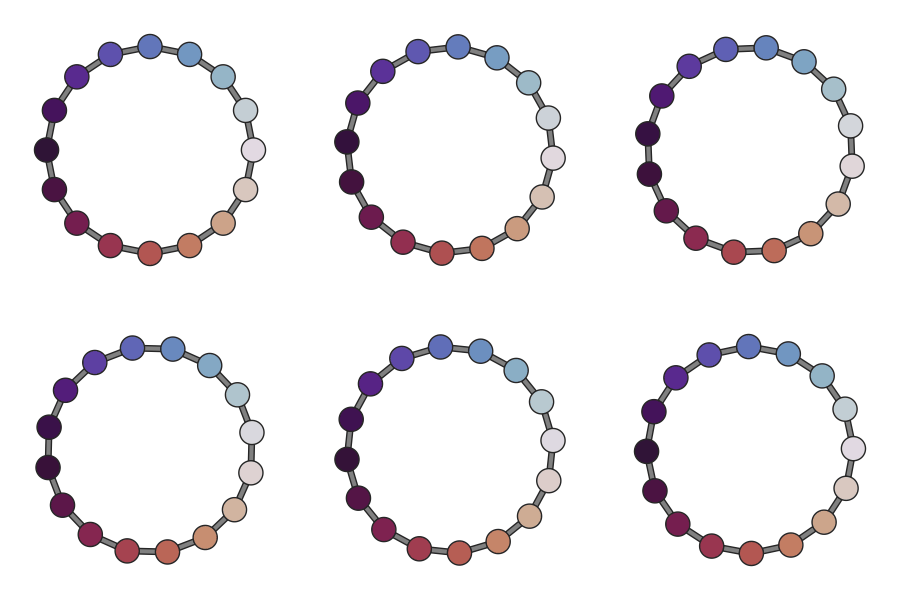
Per-frame colouring
set_atom_data() accepts 2-D arrays of
shape (n_frames, n_atoms) so that colourmap-based colouring can
vary per frame. This is useful for visualising properties that
evolve over a trajectory, such as local order parameters, coordination
environments, or spatial orientation.
# angle_data has shape (n_frames, n_atoms)
scene.set_atom_data("angle", angle_data)
scene.render_animation(
    "output.gif",
    colour_by="angle", cmap="twilight",
    colour_range=(0, 360),
)
Numeric data is automatically scaled using the global range across all
frames so that colours are consistent throughout the animation. Use
colour_range to fix the limits explicitly. Categorical (string)
data uses a global label set so that the same label always maps to the
same colour.
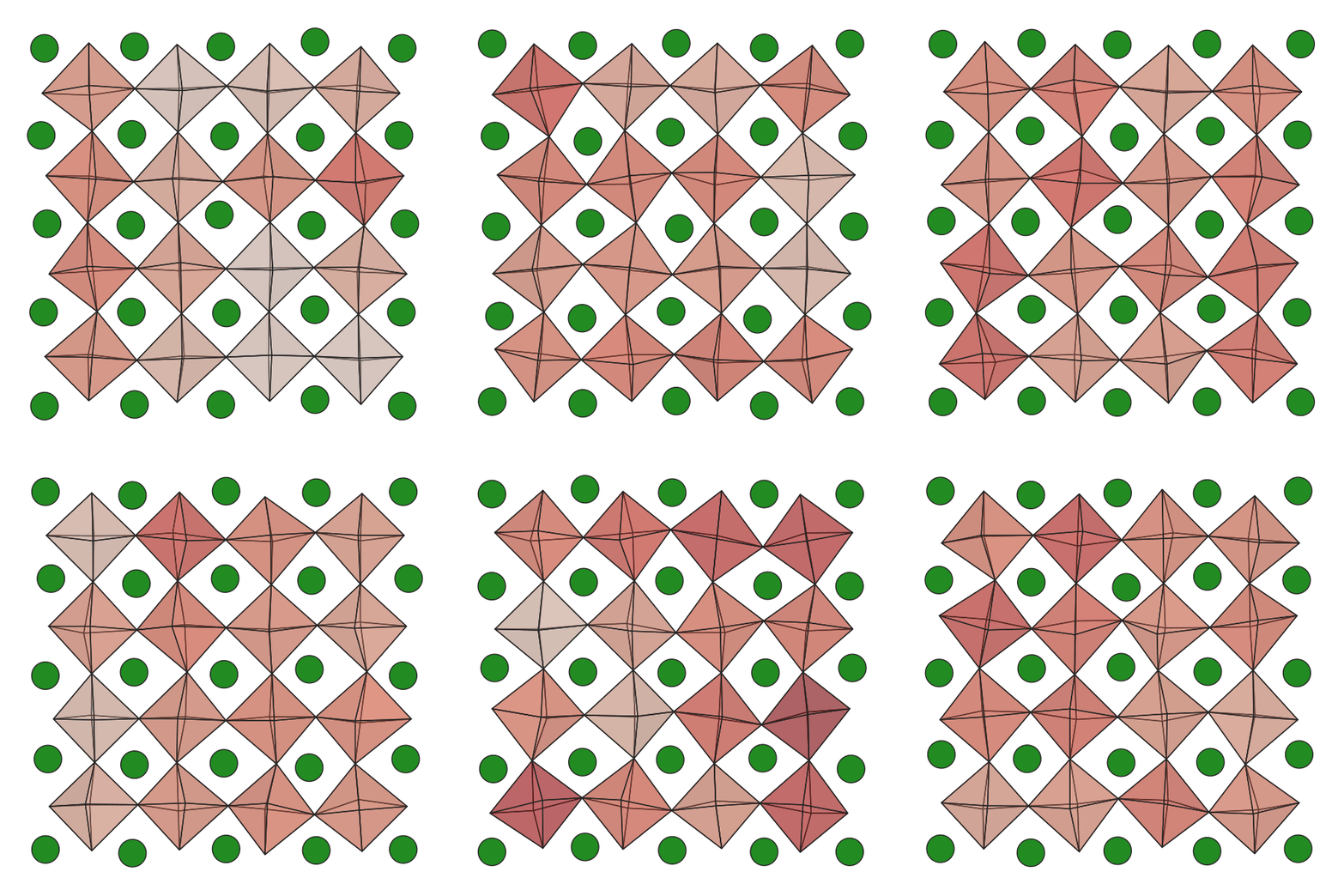
Polyhedra inherit colour_by colouring from their centre atom, so
per-frame data on the centre atoms flows through to the polyhedra
automatically. Here, the octahedral tilt angle of each TiO6
polyhedron in an SrTiO3 MD trajectory is mapped through the
Reds colourmap — white for untilted, red for maximum tilt:
# tilt_data has shape (n_frames, n_atoms); NaN for non-Ti atoms.
scene.set_atom_data("tilt", tilt_data)
scene.render_animation(
    "srtio3_tilt.gif",
    colour_by="tilt", cmap="Reds",
    colour_range=(0, max_tilt),
)
Style keyword arguments
Any RenderStyle field can be passed as a keyword
argument to render_animation(), just as with render_mpl():
scene.render_animation(
    "output.gif",
    show_bonds=False,
    show_polyhedra=True,
    pbc_padding=1.0,
)
Interactive trajectory viewing
Multi-frame scenes can also be explored interactively. See
Interactive viewer for keyboard controls including frame navigation
([ / ], { / }), frame indicator (f),
go-to-frame (g), and step size (s).