Rendering
Once you have a StructureScene, call
render_mpl() to produce an image. The
output format is inferred from the file extension (.svg, .pdf,
.png). This page covers how to control the camera view, visual
style, and figure overlays.
Controlling the view
The ViewState controls rotation, zoom, and
perspective.
Rotation
Set the viewing direction with look_along():
scene.view.look_along([1, 1, 0]) # View along [110]
Or set the rotation matrix directly:
import numpy as np
scene.view.rotation = np.eye(3)  # Identity (default)
Zoom
scene.view.zoom = 1.5 # Zoom in
Perspective
scene.view.perspective = 0.3  # Mild perspective
scene.view.perspective = 0.0  # Orthographic (default)
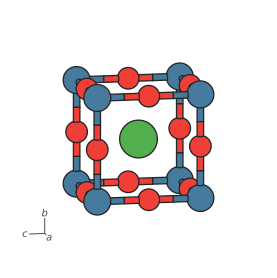
Orthographic ( |
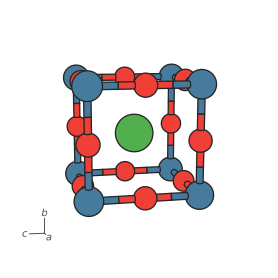
Perspective ( |
Render styles
RenderStyle groups visual appearance settings
independent of the structure data. You can pass a full style object
or use convenience keyword arguments:
from hofmann import RenderStyle

# Via a style object:
style = RenderStyle(
    atom_scale=0.8,
    show_outlines=False,
    half_bonds=False,
)
scene.render_mpl("clean.svg", style=style)

# Or as convenience kwargs:
scene.render_mpl("clean.svg", atom_scale=0.8,
                  show_outlines=False, half_bonds=False)
Any RenderStyle field can be passed as a keyword
argument to render_mpl(). Unknown
keyword names raise TypeError.
Here is the same SrTiO3 perovskite rendered with different styles:
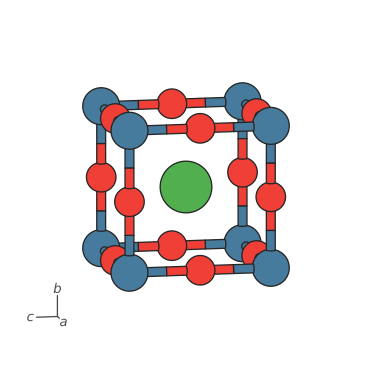
Ball-and-stick |
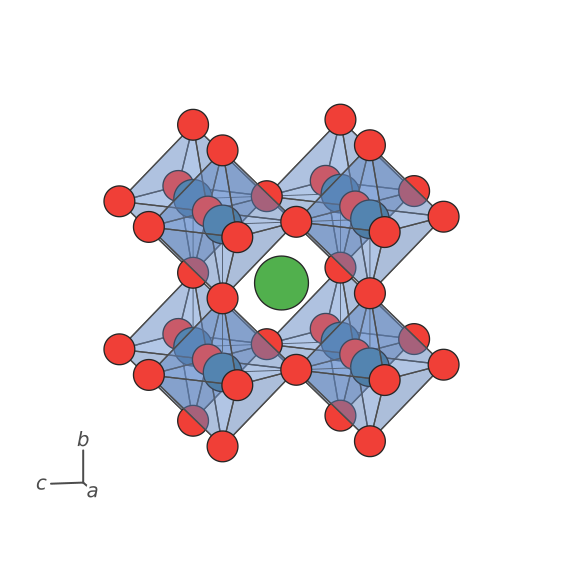
With polyhedra |
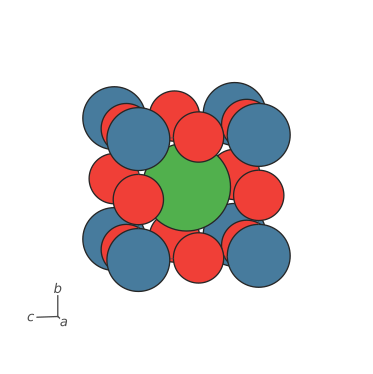
Space-filling ( |
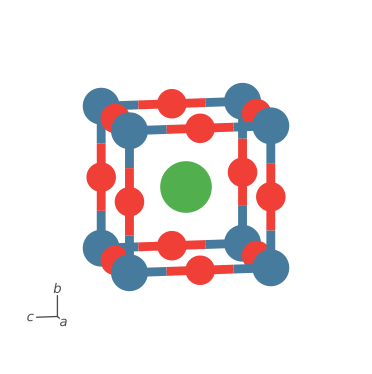
Outlines disabled ( |
Half-bonds
When half_bonds=True (the default), each bond is split at the
midpoint and each half is coloured to match the nearest atom. With
half_bonds=False, bonds use the colour from their
BondSpec.
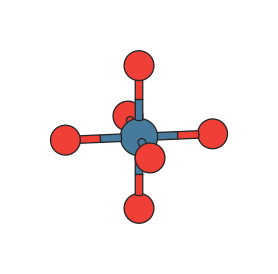
|
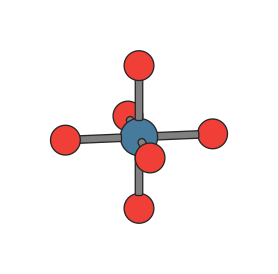
|
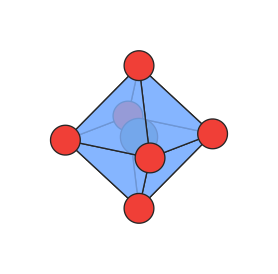
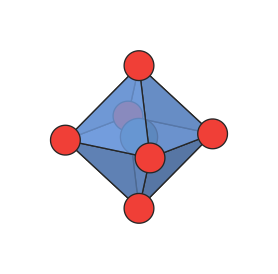
Polyhedra shading
The polyhedra_shading setting controls diffuse (Lambertian) shading
on polyhedra faces. At 0.0 all faces are flat; at 1.0 (the
default) faces facing the light source are bright and oblique faces are
dimmed. The light direction defaults to the viewing axis; set
light_direction on RenderStyle to an off-axis
direction such as (-0.3, 0.5, 1.0) for visible shading from
top-down viewing angles.
|
|
Overlays and widgets
hofmann can draw extra annotations on top of the structure: unit cell edges, an axes orientation widget, and a species legend.
Unit cell
For scenes created from pymatgen Structure objects, the unit cell
wireframe is drawn automatically. The 12 cell edges are
depth-interleaved with atoms, bonds, and polyhedra so they correctly
occlude and are occluded.
Disable cell edges or customise their appearance via
RenderStyle:
# Disable cell edges:
scene.render_mpl("output.svg", show_cell=False)

# Custom cell edge style:
from hofmann import CellEdgeStyle, RenderStyle

style = RenderStyle(
    cell_style=CellEdgeStyle(
        colour="blue",
        line_width=1.2,
        linestyle="dashed",
    ),
)
scene.render_mpl("output.svg", style=style)
Available linestyles: "solid" (default), "dashed",
"dotted", and "dashdot".
Scenes loaded from XBS files have no lattice information, so cell edges are not drawn. You can set a lattice manually:
import numpy as np
scene = StructureScene.from_xbs("structure.bs")
scene.lattice = np.diag([5.43, 5.43, 5.43])  # Cubic, 5.43 A
Axes orientation widget
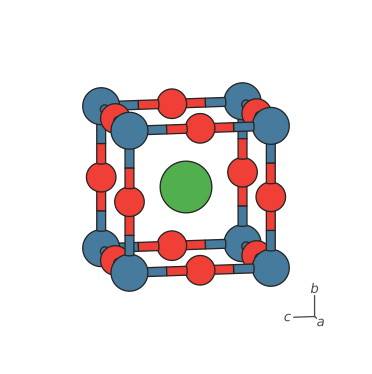
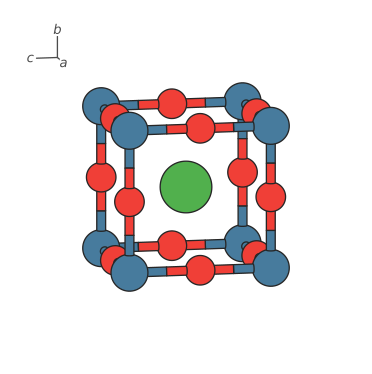
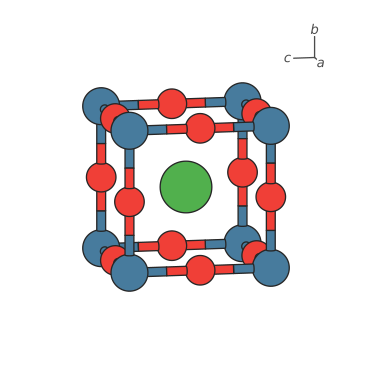
For periodic structures, an axes orientation widget shows the crystallographic a, b, c lattice directions as lines in a corner of the figure. The widget is drawn automatically when a lattice is present (the same auto-detection as unit cell edges) and rotates in sync with the structure.
Disable or customise the widget via RenderStyle:
# Disable the axes widget:
scene.render_mpl("output.svg", show_axes=False)

# Custom widget style:
from hofmann import AxesStyle, RenderStyle

style = RenderStyle(
    axes_style=AxesStyle(
        corner="top_right",
        colours=("red", "green", "blue"),
        labels=("x", "y", "z"),
    ),
)
scene.render_mpl("output.svg", style=style)
Species legend
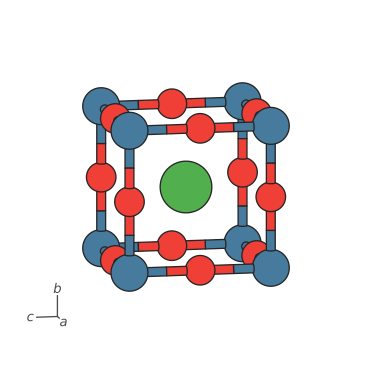
A species legend maps each atom species to its coloured circle. Unlike
cell edges and the axes widget, the legend is off by default — enable it
with show_legend=True:
scene.render_mpl("output.svg", show_legend=True)
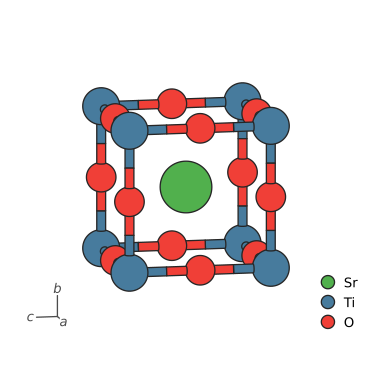
SrTiO3 perovskite with show_legend=True.
Customise the legend via LegendStyle:
from hofmann import LegendStyle, RenderStyle

style = RenderStyle(
    show_legend=True,
    legend_style=LegendStyle(
        corner="top_right",
        font_size=12.0,
    ),
)
scene.render_mpl("output.svg", style=style)
By default the legend auto-detects species from the scene in first-seen
order, filtering to those with visible=True. To control which
species appear and in what order, pass an explicit species tuple:
LegendStyle(species=("O", "Ti", "Sr"))
The spacing and label_gap parameters control the vertical gap
between entries and the horizontal gap between each circle and its
label, respectively (both in points):
LegendStyle(spacing=5.0, label_gap=8.0)
Custom labels
Pass a labels dict to override the display text for any species.
Common chemical notation is auto-formatted: trailing charges become
superscripts (Sr2+ → Sr²⁺) and embedded digits become subscripts
(TiO6 → TiO₆). Labels containing $ are passed through as
explicit matplotlib mathtext.
LegendStyle(labels={
    "Sr": "Sr2+",       # auto superscript
    "Ti": "TiO6",       # auto subscript
    "O":  r"$\mathrm{O^{2\!-}}$",  # explicit mathtext
})
Species not in the dict use their name as-is.

Circle sizing
The circle_radius parameter controls the size of the legend
circles and accepts three forms:
float — uniform radius for all entries (the default,
5.0points).tuple (min, max) — proportional sizing. Each species’ circle is scaled linearly between min and max based on its
AtomStyle.radiusrelative to the smallest and largest radii in the legend. When all atom radii are equal, max is used.dict — explicit per-species radii in points. Species not present in the dict fall back to the default (5.0 points).
# Proportional: smaller atoms get smaller circles.
LegendStyle(circle_radius=(3.0, 7.0))

# Explicit per-species:
LegendStyle(circle_radius={"Sr": 4.0, "Ti": 7.0, "O": 5.0})

Uniform ( |

Proportional ( |

Dict (per-species) |
For fully custom legends with polygon markers, 3D polyhedron icons, or fine-grained control over individual entries, see Custom legends.
Standalone legend
Use render_legend() to produce a
legend-only image — useful for composing figures manually in Inkscape,
Illustrator, or LaTeX:
from hofmann.rendering.static import render_legend

render_legend(scene, "legend.svg")

# With proportional sizing:
from hofmann import LegendStyle
render_legend(scene, "legend.svg",
              legend_style=LegendStyle(circle_radius=(3.0, 8.0)))
The figure is cropped tightly to the legend entries and has no axes or
structure. See render_legend() for the
full parameter list.
Widget positioning
Both the axes widget and the species legend share the same positioning
interface via the corner and margin parameters on
AxesStyle and LegendStyle.
Named corners
Pass one of "bottom_left", "bottom_right", "top_left", or
"top_right" (these correspond to the WidgetCorner
enum). The default is "bottom_left" for the axes widget and
"bottom_right" for the legend.
from hofmann import AxesStyle, LegendStyle, RenderStyle

style = RenderStyle(
    show_legend=True,
    axes_style=AxesStyle(corner="top_left"),
    legend_style=LegendStyle(corner="top_right"),
)
The four-panel figure below shows the axes widget placed in each named corner:
|
|
|
|
Margin
The margin parameter controls how far the widget is inset from its
corner, as a fraction of the viewport half-extent. The default is
0.15. This only applies when corner is a named corner — it is
ignored for explicit coordinates.
AxesStyle(corner="top_right", margin=0.05)   # Tighter to the edge
LegendStyle(corner="top_right", margin=0.30) # Further inset
Custom coordinates
For precise placement, pass a (x, y) tuple of fractional viewport
coordinates, where (0.0, 0.0) is the bottom-left corner and
(1.0, 1.0) is the top-right corner. The margin parameter is
ignored in this case.
# Place the axes widget at a custom position.
AxesStyle(corner=(0.15, 0.85))

# Place the legend near the centre-right of the figure.
LegendStyle(corner=(0.85, 0.5))
Depth slicing
Restrict the visible depth range to show a slice through the structure:
scene.view.slab_near = -2.0
scene.view.slab_far = 2.0
See slab_mask() for how slab visibility is
computed.
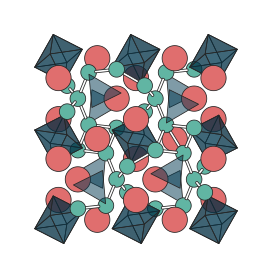
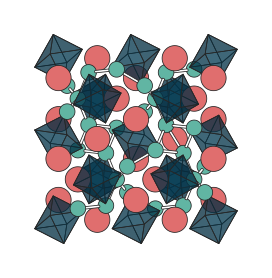
The slab_clip_mode setting on RenderStyle
controls how polyhedra at the slab boundary are handled:
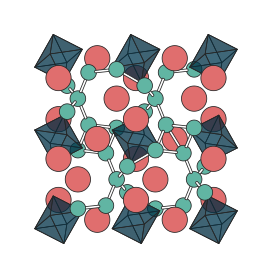
"per_face"(default) – drop individual faces whose vertices are outside the slab"clip_whole"– hide the entire polyhedron if any vertex is clipped"include_whole"– force the complete polyhedron to be visible when its centre atom is within the slab
Here is the LLZO garnet with a depth slab that clips through several ZrO6 octahedra, rendered with each mode:
|
|
|
Multi-panel rendering
By default render_mpl() creates its own
figure. Pass the ax parameter to draw into an existing matplotlib
axes instead — useful for multi-panel figures or combining a structure
with other plots:
import matplotlib.pyplot as plt
from hofmann import StructureScene

scene = StructureScene.from_xbs("structure.bs")

fig, (ax1, ax2) = plt.subplots(1, 2, figsize=(10, 5))
ax1.plot(x, y)              # Your own data
scene.render_mpl(ax=ax2)    # Structure alongside
fig.savefig("panel.pdf", bbox_inches="tight")
When ax is provided, the caller retains full control of the parent
figure — the output, figsize, dpi, background, and show
parameters are ignored.
As an example, here is rutile TiO2 viewed along [100] and [001], showing the distinct projections perpendicular and parallel to the c axis:
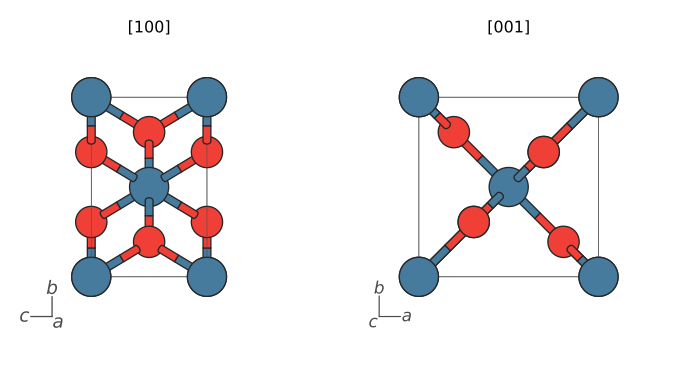
import matplotlib.pyplot as plt
from hofmann import StructureScene

scene = StructureScene.from_pymatgen(structure, bond_specs)

fig, (ax1, ax2) = plt.subplots(1, 2, figsize=(8, 4))
for ax, direction, label in zip(
    [ax1, ax2], [[1, 0, 0], [0, 0, 1]], ["[100]", "[001]"],
):
    scene.view.look_along(direction)
    scene.title = label
    scene.render_mpl(ax=ax)

fig.tight_layout()
fig.savefig("projections.pdf", bbox_inches="tight")